

Free Up Google Storage in 2026: 12 Proven Ways to Clean Gmail, Drive & Photos (Without Paying)

Seeing the “Your storage is almost full” warning? You can free up Google storage in less than 30 minutes by deleting large Gmail attachments, clearing Drive files you no longer need, and cleaning up duplicate or blurry photos. Every free Google account gets 15GB, shared across Gmail, Google Drive and Google Photos, and once it is full, you may stop receiving emails and your backups can fail.
Before paying for a Google One plan, try the proven methods in this guide. We explain how Google storage works, how to find what is using the most space, and twelve practical ways to free up Google storage without losing anything important.

Table of Contents
How Google Storage Works
Your free 15GB is shared by three main services:
| Service | What Uses Space |
|---|---|
| Gmail | Emails and attachments, including Spam and Trash |
| Google Drive | Files, PDFs, videos, backups and shared files you own |
| Google Photos | Photos and videos backed up in Original or Storage saver quality |
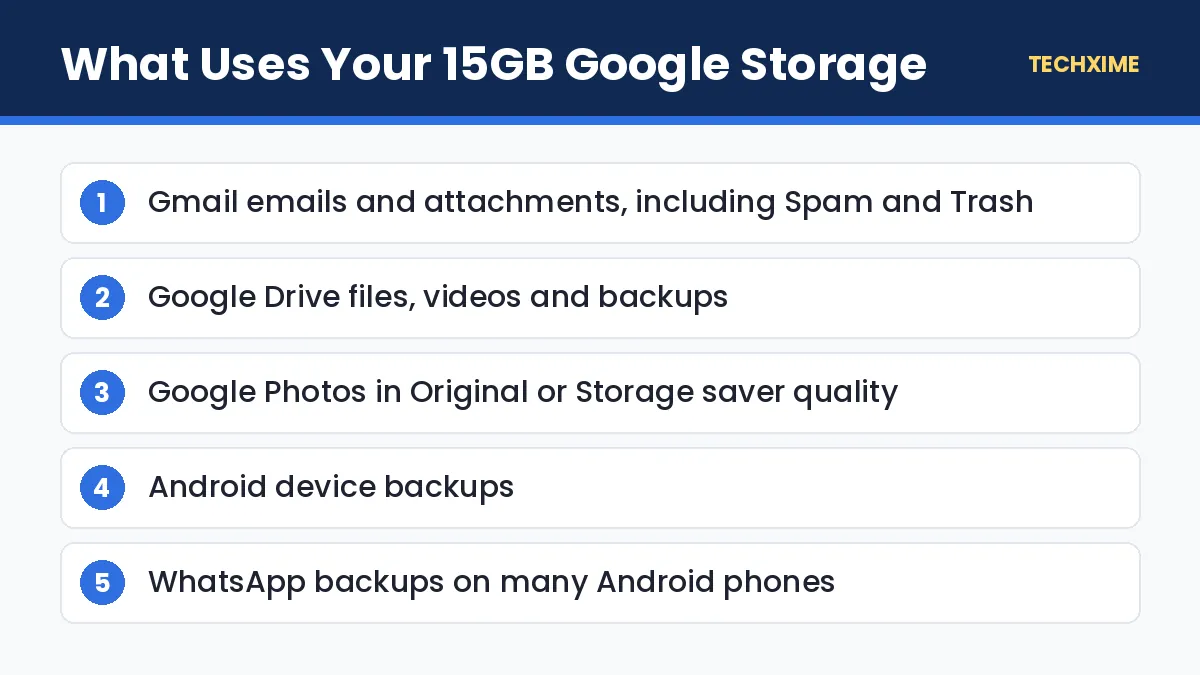
Android device backups and, on many phones, WhatsApp backups on Google Drive also count toward this limit. When the storage is full:
- You cannot send or receive new emails in Gmail.
- New files cannot be uploaded to Drive.
- Photos and videos stop backing up.
- WhatsApp and phone backups may fail.
Step 1: Check What Is Using Your Storage
Open the Google One storage page in a browser or the Google One app. You will see a breakdown by Gmail, Drive and Photos. Below that, the Clean up space section shows large files, deleted items, spam and blurry photos. This is the quickest way to free up Google storage because it points you straight at the biggest items.
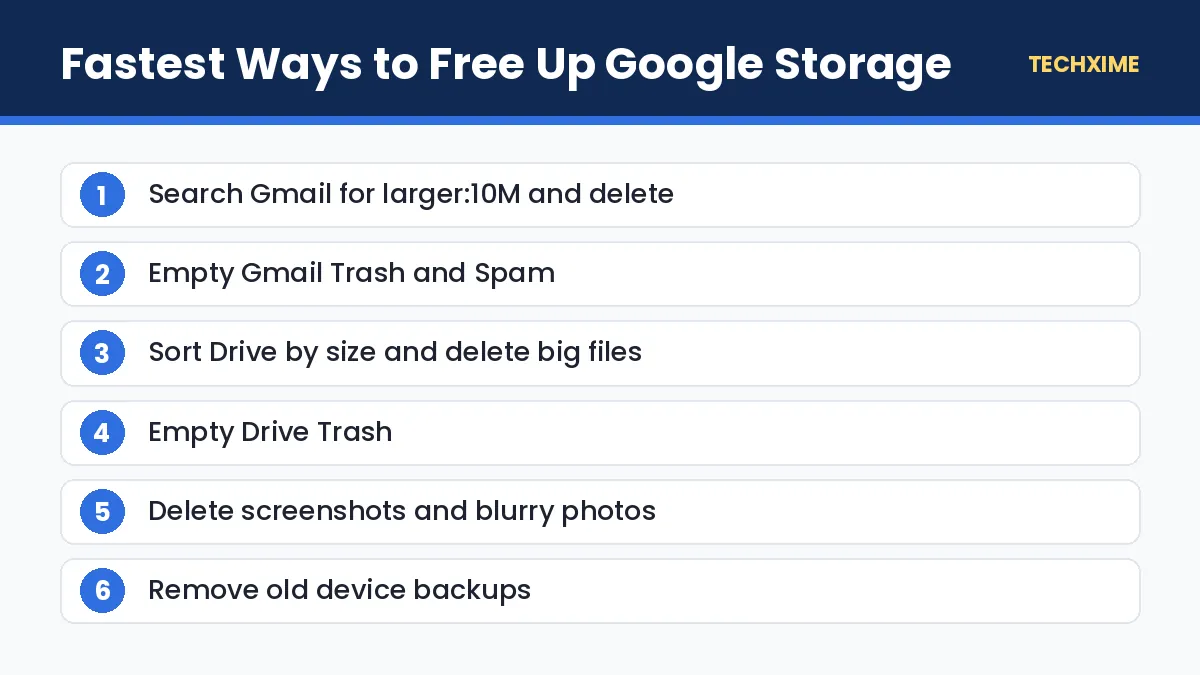
12 Proven Ways to Free Up Google Storage
1. Delete Large Gmail Attachments
Attachments take up much more space than the emails themselves. In the Gmail search bar, type:
- larger:10M to find emails bigger than 10MB
- has:attachment larger:5M to find emails with attachments bigger than 5MB
- older_than:2y has:attachment to find old emails with attachments
Select the emails you do not need and delete them. Then empty the Trash.
2. Empty Gmail Trash and Spam
Deleted emails stay in Trash for 30 days and still count against your storage. Open Trash and click Empty Trash now. Do the same with Spam.
3. Delete Promotional and Social Emails in Bulk
Click the Promotions or Social tab, tick the select box, and choose Select all conversations. Delete them in one go. You can also search for category:promotions older_than:1y for an even faster cleanup.
4. Unsubscribe From Newsletters
Stopping new clutter is as important as deleting old mail. Gmail shows an Unsubscribe link at the top of many marketing emails. Use it to reduce incoming mail.
5. Find the Biggest Files in Google Drive
Visit drive.google.com/drive/quota to see all your files sorted by size. Delete large videos, old installers, duplicate PDFs and zip files you no longer need.
6. Empty Google Drive Trash
Deleted Drive files also stay in the Trash for 30 days. Open Trash in Drive and click Empty trash to free up Google storage immediately.
7. Remove Old Device Backups
Go to Drive > Storage > Backups or check backups in Google One. Delete backups from phones you no longer use.
8. Manage WhatsApp Backup Size
If your WhatsApp backup counts toward Google storage, reduce its size:
- In WhatsApp, go to Settings > Storage and data > Manage storage.
- Delete large forwarded videos and files you do not need.
- In Chat backup, turn off Include videos if you do not need them backed up.
Before deleting anything important, learn how backups protect you in our guide to recover deleted WhatsApp messages.
9. Switch Google Photos to Storage Saver
Photos backed up in Original quality take much more space. In Google Photos, go to Settings > Backup > Backup quality and choose Storage saver. You can also use Recover storage in some accounts to compress existing photos, though this cannot be undone.
10. Delete Blurry Photos, Screenshots and Large Videos
In Google Photos, tap Profile > Photos settings or Manage storage. Photos shows categories such as blurry photos, screenshots, large photos and videos, and photos from other apps. Review and delete in bulk. Remember to empty the Bin afterwards.
11. Remove Duplicate Files
Duplicate uploads happen when you back up the same folder twice or save the same attachment to Drive multiple times. Search Drive by file name or type, sort by name, and delete copies.
12. Move Files to Another Account or Local Storage
If you need to keep large files but not in the cloud, download them to a laptop, external hard drive or pen drive, then delete them from Google. You can also use a second Google account for archives, but remember that Google may delete accounts that have been inactive for two years.
How Much Space Can You Recover?
Results vary, but here is a typical picture after cleanup:
| Cleanup Task | Typical Space Freed |
|---|---|
| Deleting large Gmail attachments | 1GB to 5GB |
| Emptying Trash and Spam | 200MB to 2GB |
| Cleaning Drive videos and old backups | 1GB to 6GB |
| Deleting screenshots and blurry photos | 500MB to 3GB |
| Switching to Storage saver | Depends on your photo library |
Many people can free up Google storage by several gigabytes in one session, which often removes the need to pay for extra space.
Should You Buy Google One Storage?
If you still need more space after cleanup, Google One plans in India start at around ₹130 per month for 100GB, with bigger plans for 200GB and 2TB. Annual plans are cheaper than paying monthly, and plans can be shared with family members. Some AI plans also bundle 2TB storage with Gemini features. Check the Google One app for current prices and offers before buying.
A paid plan makes sense if you:
- Shoot a lot of 4K video on your phone.
- Use Drive for work or study files.
- Want to back up your family’s photos in one place.
Tips to Keep Your Storage Clean
– Check your storage every three months. – Avoid saving large email attachments to Drive twice. – Turn off backup for folders like WhatsApp Images if they fill quickly with forwards. – Use Storage saver for photos unless you need full resolution. – Keep your phone’s local storage clean as well. Our guide to speed up Windows 11 also covers cleaning up large files on your PC.
Free Up Google Storage on Your Phone
You can do most of the cleanup directly from your Android phone or iPhone:
- Open the Google One app and tap Storage or Clean up space.
- Review suggested categories such as large files, deleted items and blurry photos.
- In the Gmail app, search for “larger:10M” and delete unwanted emails.
- In the Google Drive app, open the menu, tap Storage, and sort files by size.
- In Google Photos, tap your profile, then Manage storage to review screenshots and large videos.
Doing a quick cleanup on your phone once a month is enough to free up Google storage before it fills again.
Useful Gmail Search Operators
These search filters make it much easier to find large or old emails:
| Search | What It Finds |
|---|---|
| larger:10M | Emails bigger than 10MB |
| has:attachment filename:pdf | Emails with PDF attachments |
| older_than:3y | Emails older than three years |
| category:promotions | Promotional emails |
| from:example@domain.com | Emails from a specific sender |
| in:anywhere larger:5M | Large emails in all folders, including Spam and Trash |
You can combine these, for example: older_than:2y larger:5M. Select all results, delete them and empty the Trash to free up Google storage in one go.
Family and Shared Storage Tips
If you share a Google One plan with your family, each person’s usage counts toward the shared total. Ask family members to clean up their own Gmail and Photos too. Files that others share with you in Drive do not count toward your storage, but files you own and share with others do.
What Not to Delete
While you free up Google storage, be careful with:
- Tax documents, salary slips and investment statements.
- Scanned copies of Aadhaar, PAN and property documents.
- Photos and videos that exist only in Google Photos.
- WhatsApp backups if you have not moved to a new phone yet.
When in doubt, download a copy to your computer before deleting.
Quick Summary: Free Up Google Storage
– Start at one.google.com/storage to see what is using space. – The quickest way to free up Google storage is to delete large Gmail attachments. – Empty Trash in Gmail, Drive and Photos, because deleted items still count. – Use Storage saver and delete screenshots to free up Google storage in Photos. – Buy a Google One plan only if you still need space after cleanup.
Free Up Google Storage in 30 Minutes: A Simple Plan
If you only have half an hour, follow this order for the biggest results:
- Minutes 1 to 5: Open one.google.com/storage and note which service uses the most space.
- Minutes 5 to 15: In Gmail, search “larger:10M”, review and delete. Then search “has:attachment older_than:2y” and delete what you do not need.
- Minutes 15 to 20: Empty Gmail Trash and Spam.
- Minutes 20 to 25: Open the Drive quota page and delete the five largest files you no longer need, then empty Drive Trash.
- Minutes 25 to 30: In Google Photos, delete screenshots and large videos you do not need, then empty the Bin.
This plan alone can free up Google storage by several gigabytes for most users.
Why Google Storage Fills Up So Fast
Understanding the cause helps you prevent it:
- High-resolution phone cameras: Modern phones take 12MP to 200MP photos and 4K videos, which quickly add up.
- WhatsApp forwards: Videos and images saved automatically get backed up.
- Email attachments: Large PDFs and presentations from work and school.
- Multiple device backups: Every old phone you backed up leaves data behind.
- Duplicate uploads: The same photos backed up from several devices.
Adjusting a few settings, such as turning off auto-download for WhatsApp media, can slow down how quickly you fill your 15GB.
Google Storage vs Phone Storage
Many people confuse Google account storage with phone storage. Deleting photos from your phone gallery does not always free up Google storage, and deleting from Google Photos may also remove them from your phone if backup and sync are on. Before deleting, check whether you are working in the Google Photos app (cloud) or your phone’s file manager (local). Download a copy of anything important first.
Settings to Stop Storage From Filling Again
– In WhatsApp, turn off media auto-download for groups. – In Google Photos, turn off backup for folders like Screenshots or Downloads. – In Gmail, create filters to auto-delete or archive promotional emails. – In Drive, avoid saving multiple versions of the same large file.
These small changes help you free up Google storage once and keep it free for months.
Key Terms Explained
– Google One: Google’s paid storage subscription, which also manages free storage. – Storage saver: A Google Photos backup quality that compresses photos and videos slightly. – Original quality: Full-resolution backup that uses more storage. – Quota: The total storage available to your account. – Bin or Trash: Folders where deleted items stay for 30 days, still using storage.
Real-Life Examples
Rohit’s Gmail stopped receiving emails: He searched “larger:10M” and found old video attachments from college. Deleting them and emptying Trash freed 4GB in ten minutes.
Sana’s photo backup stopped: Google Photos showed thousands of screenshots and forwarded memes. She deleted them, switched to Storage saver and was able to free up Google storage by over 3GB.
A family sharing one account: They had backups from three old phones. Removing those device backups in Google One freed several gigabytes without deleting a single personal photo.
Expert Tips
– Review Google One’s Clean up space suggestions every month. – Delete large files first; it saves more time than deleting many small ones. – Download important files to a laptop or hard drive before deleting them from the cloud. – Use separate accounts for work and personal data to spread storage.
Frequently Asked Questions
How can I free up Google storage quickly?
Open the Google One storage page, delete large Gmail attachments, empty Trash and Spam, and delete big Drive files. These steps usually free the most space fastest.
Does deleting emails free up Google storage?
Yes, especially emails with attachments. Remember to empty Trash, because deleted emails still use space for 30 days.
Do WhatsApp backups count toward Google storage?
On many Android phones, WhatsApp backups on Google Drive now count toward your 15GB. Check your WhatsApp backup size in chat backup settings.
What happens when my Google storage is full?
You cannot receive new Gmail messages, upload to Drive or back up photos until you free up space or upgrade.
Will switching to Storage saver reduce photo quality?
Storage saver slightly compresses photos and videos. For most phone photos, the difference is hard to notice.
How much free storage does Google give?
Every Google account gets 15GB free, shared across Gmail, Drive and Photos.
Staying Updated
Storage fills up again over time, so set a calendar reminder every few months to free up Google storage. Official processes, fees and timelines can change over time.
Save this page, share it with family members who may need help, and read our other step-by-step guides on Techxime for Aadhaar, PAN, banking, vehicles and smartphones. If something in the process looks different on the official website, follow the latest instructions shown there, because government portals sometimes change their menus and button names without notice.
Conclusion
You do not always need to pay to fix a full Google account. Use the Google One storage page to find the biggest culprits, delete large attachments and old files, empty Trash, and clean up Google Photos. With these twelve proven methods, you can free up Google storage by several gigabytes and keep your email and backups running smoothly.